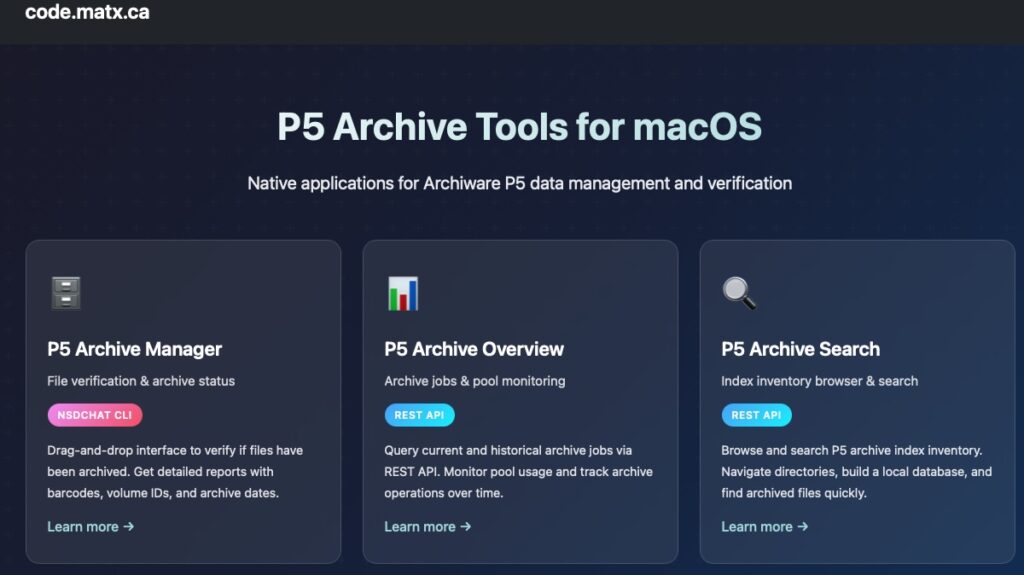
I’m building tools to help me and my clients work with Archiware’s amazing and awesome P5 Archive product. It’s great. It archives, it restores, it has a great web UI, and it’s always getting better. So why build apps? Sometimes you want something different, in my case my clients wanted spreadsheets. Yup. Data in a sheet. To look at. So I poked at P5’s databases via cli (see P5 Archive Manager) and with the REST API. Here are the results, two new apps P5 Archive Overview and P5 Archive Search.
https://code.matx.ca/ is code on GitHub + Mac apps that help manage data in Archiware P5
Why API? And not cli
Usually the cli (command line interface) is perfect for working in Terminal and in shell scripts or other programming languages. Using an API or application programming interface, allows different software applications to communicate and share data with each other. Instead of cli commands and arguments programs make requests using specific methods like GET or POST to retrieve or send data.See: API on Wikipedia
Using an API for my Mac apps means they could use a protocol like HTTP, and make a request using GET (to retrieve data).
The magic parts of an API
API Client: The application making the request.
Endpoints: Specific URLs where the API can be accessed.
For the P5 Archive Overview app we need to use the specific API Endpoint for archive overview detailed by Archiware here which lucky for us is a simple call for data which our app can display, save as json, format as csv (for the spreadsheet!!) and stash in a SQLite database for historical searches.
However, the P5 Archive Search app has to make many calls to walk through the index tree which is an inventory by path of the files archived. So we ask the user to name the storage they want to search and we make a breadcrumb through the storage, storing everything in SQLite as well as saving json and csv snippets of what we find. A lot more API calls but perfect for an app to do in the background.
The P5 Archive Search app queries the P5 Archive Index Inventory REST API:
“`
GET http://{server}:{port}/rest/v1/archive/indexes/{archive-index}/inventory/{path}
When running macOS 15 and up jq is installed for free and can help make the csv files form the json, but if you’re running macOs 14 then you need to install it with homebrew, MacPorts, or on your own.
One funny story during the early testing, I had to fix the jq detection in my first version because it totally missed reading the unix path correctly and yeah, thanks to a friend on the MacAdmins Slack who had an issue when trying it out. I was able to go back and fix that. Friends help friends make better code.
I’m not done making apps, and I’ll keep tweaking these three I have so far and making new ones from the scripts I have. The goal is to manage data, get a better understanding of the data in the archives and let the clients and owners of the data to know what they have.
Background: I manage a few backup and archive servers for clients and these run the Archiware P5 suite of software (archive, backup and sync). To help manage these servers over the years I’ve written some P5 monitoring tools for Watchman and MunkiReport as well worked on helper scripts using the cli tools or more recently the API.
In an effort to share some simple examples of what is possible I have organized a few samples from my GitHub repos on the code.matx.ca page with some useful descriptions and text about usage and purpose of the scripts. They are hosted on in repo here:
I have more scripts of general and specific interest in my repo to P5 users or anyone managing files. See this post on find scripts.
The P5 code toolbox
The following P5 scripts are just a few examples and I have more to share, if there’s interest. I created most of these simple tools initially to run on the P5 server directly but I have since created, for my clients, versions which run from anywhere. Also, in some cases, a few scripts have now been built into easy to use Mac applications where it makes sense. If you want some help and you want to hire me to help with these things please reach out.
The scripts are in three categories:
1) P5 archive intelligence (all archive jobs from Db exported as a spreadsheet, or get recent archive jobs via REST API),
2) P5 housekeeping (make all full tapes read only, show all appendable archive tapes), and
3) P5 info backup (export all volumes into one csv, and export all volumes inventory as TSV with barcode as the name)
P5 Archive Intelligence
What do I mean by “archive intelligence”? Simply, I want to know about everything I’ve archived. One should consider the P5 Archive server as the ultimate source for all things archived but in some cases my clients don’t use the P5 server directly, or they want the information organized differently, like in a spreadsheet. And while the Archiware P5 suite of software is ever evolving, growing and adding features (even some lovely visual dashboards in v.7.4) I have been attempting to solve the perennial question of “what do we have archived?” in better and more useful ways.
P5 Information Backup
Related to archive intelligence is knowing what is in my P5 archive system entirely. I modified a provided shell script from the Archiware cli manual to output a csv of a list of all P5 volumes in the tape library (aka jukebox) so that I might know what is in the system at all times, and even if my P5 server is not running I have a record of every tape. This is one of the scripts I run with my periodic and backup workflows but more on my own special P5 backups (backups of the P5 Db and other metadata) in another post. The Archiware provided P5 volume list script inspired my own script to list full and appendable archive tapes which I have as a one-click desktop app for my clients. When they want to restore something P5 will tell them what to put in the tape library but if you have a lot of tapes maybe you want to know what to remove and so I have a list of candidates (ie take out the full tapes, and leave the appendable archive tapes). Helpful, yes.
P5 Inventory
There is a P5 cli command to export out the complete inventory and depending on how long you’ve been archiving and how much is in your archive this tool can take a long time to export a list of every file ever. And because of my mostly non-advanced super skills some times I’d find this process would time out. (There are ways around this but that’s another post). Basically, Too much archive! When it didn’t error out I had a big file… so one day a friend of mine suggested we use Jupyter notebook and yes, use Python!, to do some data analysis. A really fun project, great tool, but this is a hard problem to solve. We made a thing, it worked for a while then I wanted to find a better way. People liked my bar graphs and total amount archived but they also wanted spreadsheets. So let’s give them what they want.
Two (or three) approaches:
cli
api
db
I like lower case letters which are acronyms but let’s explore further.
cli
Using the cli (command line interface) usually in a shell script (but also in clever Mac apps) typically requires running the script with the Archiware P5 cli (nsdchat) locally on the P5 server and certainly this is what I did when I was testing scripts and various tools. It makes sense if you’re administering a server and you remote in (ssh or screenshare) and that’s where you start. After I wile I discovered the trick to make these cli based scripts run from anywhere which was handy if I wanted to connect to all my p5 servers at once in a script or have my client use an app on their desktop which talks to the P5 server. More on awsock in another post.
An example of a cli script using nsdchat I have a script for taking the inventory contents of each archive tape (LTO) and writing its contents to a TSV file (tab separated values) which is like a CSV (comma separated values).
nsdchat Volume names
Give me a list of p5 volumes (ie tapes)and tell me which one are archive tapes and that are readonly and what is the barcode.
api
Ok instead of a cli command dependent on the nsdchat binary installed somewhere we are doing http (web) magic with the API (application programming interface) — a set of known commands in a path based on GET, PUT, POST, DELETE. The API has a different way of doing things than the cli but you can ask a lot of the same basic questions.
In my api-archive-overview script I am sending one command then using jq to select elements to organize the info into a csv (spreadsheet). This example is set to run locally but this is easily modifiable to run from anywhere. For one client I have a script that talks to every P5 server, each in a different city and asks them all what they’ve been archiving then organizes it all into one spreadsheet. It’s fun, and it’s helpful.
db
The best for last. I mentioned above my attempts to use the inventory command which itself goes to all the relavant databases and gathers all the requested data about every archive file, its size and when it was archived etc. Yeah, that’s one way to do it. I’ve shown two examples above for the cli and api but a third is to just talk to the database directly. This is an advanced technique and should only be attempted by an expert. Ok, I’m kidding. As long as you’re not writing to the database and only reading from it, this is pretty safe. What you do with the info is another magic trick and one which I’ve been working on. Two db examples are dump all jobs in a csv file and the second, dump only archive jobs. I’ve got a more advanced script which takes the data and uses sql commands to organize into a csv of how much data archived per day per week per month per year and totals, which is nice for some people who like spreadsheets and want to know about everything ever done. Caution: once you look into the Db you’ll see a lot of things, and sorting through it takes time. I found when making more advanced and selective scripts that the cli jobs used by the very old P5 Archive app (by Andre Aulich) for example showed up as system jobs not archive jobs, so you have to be careful if you want to include those. Have fun.
There’s another category of scripts which I haven’t elaborated on but I do have a few examples in my repo. I do have scripts to prepare or examine files and folders going to be archived to LTO with P5 Archive. These scripts do various things like check for trailing space in the name or check file name length but maybe the most important ones I have are scripts which take the path of the archived projects and create html maps, file size directory listings and spreadsheets (again!) of the exif data of all files to keep for future. Clients do refer to the archive stub files (p5c) but they also find it handy to see the directory map and the file size of archived items without going into the p5 server. I’m not trying to replicate the P5 server, or replace it, but this falls into p5 housekeeping and p5 information backup.
That’s enough for now. If you’ve been reading and following along then let me know if you any questions or want any help with a P5 or other related projects. If you have better ways to do these things feel free to share. My scripts are always evolving and I love to learn.
Reference:
For more info on Archiware P5 scripting and building code to interact with it I’d recommend checking out the main P5 manual, as well as the CLI (command line interface) manual, and the API documentation, knowledge base (support). As well as the sample scripts and the Archiware blog, and the video series generally.
I was chatting with Per Olofsson on a recent episode of the MacDevOps podcast about some recent fixes with relocatable Python he did for MunkiReport version 5.7.0 and I happened to mention how much I love my MR dashboards with custom hot keys. He is a long time user of MunkiReport but hadn’t heard that you could make custom dashboards and I couldn’t remember where I had heard of it or even how I made them. Pretty typical of tech these days I think. You learn something, you make something and then you move to the next thing and forget what you were doing or how you did it. Well, thanks to documentation we can share the knowledge and spread the love.
Custom Dashboards
The MunkiReport wiki actually has a short entry which explains how to make a custom Dashboards. Basically, add some YAML files in the dashboards folders and you’re done. Follow the Read Me file for instructions. Pro Tip: Use the Widget Gallery in MR to find useful pieces to build into your dashboards. Note: I’ve added these custom dashboards to my local folder which is set in my “.env” to be outside of the main munkireport folder so it easier to update across version upgrades.
In the old days we used to forward ports. On your router the traffic for a server or service went to a port (where a number represents a service, some which are defined, but can be arbitrary) and to a destination IP address. Well, wouldn’t you know it, if ssh is port 22 or web traffic is on port 80 then everyone and their port scanner comes knocking. So then your firewall is tested, and then auto-ban and geo-block and emails go out. What if we could avoid that and not open (or forward) any port to make services work across the internet?
Tailscale is a mesh-VPN which uses WireGuard to securely establish a mesh (point to point) VPN of your devices. Suddenly your iPhone can securely send files to your Mac or raspberry Pi across the world. How cool is that? In today’s advanced lesson: you can backup and sync your Synology NAS using Archiware P5.
Step 1: Setting up Tailscale on Synology
It honestly used to be harder than this, these days you can simply add the Tailscale package via the Synology package center app and you’re done. Almost. There’s one more step.
Step 2: Set up Outgoing VPN access via Tailscale which requires editing some files (which necessitate Terminal and remote login access). This only has to be done once but future updates may require fixes. This was tested in DSM 7. Pro tip: only allow remote access to a restricted and time limited account so you don’t leave it on accidentally.
Step 3. Install Archiware P5 on Synology NAS
Using Archiware P5 to Backup and Sync your NAS is a good thing if you’re already using Archiware P5 to backup and sync all the other things, then at least you have only one dashboard to look at. I use P5 with my clients to backup their shared storage to LTO and it makes sense to backup all the things no matter where they are with P5 also. With Synology NAS package center it’s a simple one-click install for P5. Add your P5 clients to your P5 server via Tailscale and you’ve got a secure setup.
This post is just a quick overview of using Tailscale to set up your P5 clients (which is your Synology NAS in this case).
Thunderbolt Xsan in a box. I’ve written about the Accusys T-share in 2020 (and in 2015 when I first found this cool tech). What’s different now? New year, new macOS. And a new challenge: can we build Xsan only using Terminal? No apps. It’s the journey that counts, right? One nerd’s journey to make an Xsan with macOS 11 Big Sur cli. Destination adventure with family fun, next stop a blinking cursor on a command line prompt.
make Xsan

make —Xsan —-bigger

reboot
Sudo make me an Xsan sandwich. I wish it were that easy! Stick around for the two or three commands you do need.
Xsan goes Terminal
Important commands for using Xsan have always been cvadmin and cvlabel (cv is short for centravision the original creators) but more recently xsanctl and slapconfig are important for creating the SAN and the OD (Open Directory) environment. Read the man pages, search the web, read some help documents. This blog is for entertainment and occasional learnings.
Lots of interesting cv (CentraVision) and sn (StorNext) commands in macOS (this list is from 10.15 Catalina). Besides binaries, what else is there? Examples. A ton of example files:
If you don’t have a fibre channel switch and fibre channel hardware RAIDs do not worry. You can build a useful Thunderbolt based Xsan with a little bit of effort. Just a little bit of peril It’s not too perilous, don’t worry.
Apple includes Xsan for free in macOS. Xsan is Apple’s fork Quantum’s StorNext SAN software. Want large fast storage made for Final Cut Pro editors, just add Xsan. Download Server.app from the Mac App Store and make your Xsan. Easy peasey. Right?
Why? Why are we doing this? Nothing beats fibre channel or Thunderbolt SAN speed for editing. Network attached storage (NAS) at 1GbE is barely usable. NAS at 10GbE is much better but still has road blocks for editors. Fibre channel or Thunderbolt with a big enough raid behind your SAN then life is great. Xsan can be shared by a small or media sized team of editors, producers and assistants.
Oh, ok. There is one problem. Apple did a major upgrade of Xsan (now version 7!) in macOS 11 Big Sur but apparently they took out the Xsan config in Server.app. (Note: This is what I was told early on and what seemed to be confirmed by Apple’s recent Xsan cli guide. It turns out that Xsan’s disappearance in Server.app to not be totally correct). Xsan is there in Server.app if you upgrade to macOS Big Sur but when you install Server on a clean macOS there is no Xsan visible in the app. Hmm. What do we do? Apple published a very nice handy guide about how to build Xsan in Terminal. So let’s get started. This is fun.
Accusys T-Share is a Thunderbolt SAN. Connect Macs with Thunderbolt cable.
What do we need? 1) Hardware raid. Ok check I have an Accusys T-Share. It’s a raid with Thunderbolt switch built in. 2) Mac. Ok I have a Mac Mini. 3) A network. Some cables, a switch and a DNS server. Ok I have a new raspberry Pi. That’s perfect.
Raspberry Pi 400 (the amazing linux computer shaped like a keyboard).
Step 1. Hardware raid. With the Accusys T-Share I just have to plug in some clients with a Thunderbolt 3 cable. Let’s fill the RAID with drives. I picked two different sizes. One group of larger disks for a data LUN (main production storage) and two smaller disks for a raid mirror to be used as metadata storage.
Step 2. A Mac running macOS Big Sur 11.5.2. Download the Accusys Mac installer on your Intel Mac (M1 is not supported with the T-Share yet as of this blog post).
Step 3. The network. Ok. This is the fun part. Let’s set up a DNS server. Ok, how do we do that? Remember that raspberry Pi you bought yourself for Christmas but never opened because you have been so busy and well you know life. Ok just me? Well, that one. Let’s use a raspberry Pi. A small inexpensive Linux computer. Install dns masq. It’s perfect for this.
The raid. Not only a great movie it’s the central part of this production media network for creatives. Once the drives are in the raid we have to make raid sets which become LUNs for Xsan. RAID5/6 for the data LUN and RAID1 (mirror) for the metadata LUN.
Read the label. Using Xsan cvlabel
Normally after we create RAID sets in the hardware raid utility we would open up Server.app and label the LUNs for Xsan use. But since we are now hardcore SAN architects we can use Terminal and the cvlabel the command to do this the hard way. Well, it’s not that hard but it can be intimidating the first few times. It’s much easier to label new LUNs than stare at a broken production SAN that has lost its labels. StorNext fun times. More about in another blog post.
Whether using Server.app in the good old days or cvlabel to label your LUNs now you should all be familiar with the command to list available LUNs. For larger SANs that won’t mount the first thing I’d check is see if the LUNs are all there. You don’t want a SAN to mount if it’s missing an important piece of itself.
cvlabel -l
This command lists available LUNs. It’s handy to know. Do this before trouble arises and you will be a cool dude when trouble happens. It does that occasionally. Prepare for the worst, hope for the best, IT motto.
To create labels for newly created RAID arrays use cvlabel to output a text file of the unlabelled LUNs, make some minor changes then label those LUNs. Create the template files first:
cvlabel -c
Edit the file. I like nano. Maybe you like vim. Or BBEdit. Or text edit. Change the name of LUNs from CVFS_unknown to whatever you like. I like to name LUNs based on the hardware they originate from so that I can find them, remove them, fix them or whatever I need to do for troubleshooting. Trust me. It’s a good idea.
cvlabel ~/Desktop/cvlabel
*WARNING* This program will over-write volume labels on the devices specified in the file "/Users/xavier/Desktop/cvlabel". After execution, the devices will only be usable by the Xsan. You will have to re-partition the devices to use them on a different file system.
Do you want to proceed? (Y / N) ->
Requesting disk rescan .
Congratulations this is the hardest part. You’ve labeled the RAID arrays as usable LUNs for Xsan. Ok, just kidding that’s not the hardest part. Have you ever heard of Open Directory? Do you fear LDAP and DNS? Well, maybe you should. It’s always DNS. Just saying.
DNS (domain name system) is just a fancy word for a list of IP addresses and host names. Using the raspberry Pi with dns masq installed we can populate the list of hosts for the Xsan and then we are golden. Hopefully if we did it right. Turns out we can make mistakes here too. Don’t use “.local” domain names. I did. It was late. I blame being tired. Changing them to “.lan” worked better.
Next up we finally create an Xsan in terminal. Or do we? let’s check the hostname first. It’s always DNS.
scutil —get HostName

CrazyMac.local

scutil --set HostName XsanMac.lan.
And now we make very big Xsan using the Xsan guide example
It was at this point that it started falling apart. It was late. I had messed up my DNS with “.local” and the Xsan wouldn’t go past this basic OD setup. I did what I always do and reach out to my Xsan colleagues and I got some curious feedback. “What do you mean Xsan isn’t in macOS Big Sur Server.app?” Hmm. I don’t see it on a fresh install. On an upgrade from 10.15 Catalina I do. So, uh, Where is it? And then it was revealed. In the View menu. Advanced. Ugh. It’s right there. Almost staring right at me. When I opened the app it said it couldn’t create an Xsan with my “.local”. That was helpful. Fixed that and Xsan with my pre-labeled LUNs was super quick to set up.
Xsan configuration in Server.app. “Ignore ownership” is the best thing ever for creatives. Trust me,
I’ll have to play with the cli set up again soon. Because there were some strange formatting it recommended to me when I tried some variations of the xsanctl createSan. I’ll dig into another day when I have more sleep. Ha ha.
There’s a lot of useful commands in macOS Big Sur Xsan which was upgraded to v7. You can check which version of Xsan you have in macOS with the cvversions command.
In Catalina (macOS 10.15.7)
File System Server:
  Server  Revision 5.3.1 Build 589[63493] Branch Head BuildId D
   Built for Darwin 19.0 x86_64
   Created on Tue Jun 22 21:08:03 PDT 2021
   Built in /AppleInternal/BuildRoot/Library/Caches/com.apple.xbs/Sources/XsanFS/XsanFS-630.120.1/buildinfo
In Big Sur (macOS 11.5.2)
File System Server:
  Server  Revision 7.0.1 Build 589[96634] Branch Head BuildId D
   Built for Darwin 20.0 x86_64
   Created on Wed Jun 23 00:32:35 PDT 2021
   Built in /System/Volumes/Data/SWE/macOS/BuildRoots/d7e177bcf5/Library/Caches/com.apple.xbs/Sources/XsanFS/XsanFS-678.120.3/buildinfo
There’s a lot of cool new binaries in Xsan v7. We will dig into those next post. For now enjoy this and go forth make some Xsan volumes with Thunderbolt or fibre channel storage. It’s fun.
I am so happy to install macOS Big Sur 11.5.1, now that it is a ready for production. Have fun with macOS Monterey those of you on the bleeding edge. For media professionals using Xsan in production storage environments August is a great month to update to the soon to be yesterday’s bad boy Mr. Big Sur.
Server.app v.5.10 in macOS Catalina 10.15.7
Upgrading to a new major version of macOS can be fraught with peril for a fleet of mac devices but it is potentially fatal for a production SAN environment. That is why we wait. We want a nice stable storage system for our Final Cut Pro editors and other media creatives so it is safe to be one version behind. Less drama that way. We prefer our dramas to be on AppleTV+
Watch TV Upgrade Xsan
It is not boring to watch AppleTV+ while upgrading Xsan
The Xsan upgrade to Big Sur was pretty much not exciting except for one funny roadblock that I had set up myself last as a kind of booby trap for “future me”. More about that later. First the boring stuff. The last few weeks have been very busy updating and re-writing documentation in Pages.app and running multiple redundant full and incremental LTO backups with Archiware P5, syncing to nearline archives, and archiving finalized projects to the LTO shelf in paradise (sounds more exciting when you put it that way don’t you think?). Updating and re-writing documentation can sound like a waste of time but “future you” will appreciate what “past you” was doing today. And today I had fun updating Xsan to macOS Big Sur. Now I must write down all my thoughts before I each too much vegan vanilla ice cream and slip into a food coma.
“Planning for disasters, while hoping for none” is the IT mantra. We planned hard and we were ready to restore Xsan from Time Machine, if we had to. Not a joke. The server is backed up by Time Machine. The data is backed up to LTO, nearline archives racked and stacked in a server room and on redundant thunderbolt RAIDs which are parked on electric trucks ready to blast off at the earliest sign of danger. Well, everything except for the last part. Would be nice. And cloud backups for those clients that want them. Plan for the worst, pay for what you can to keep your business operational and lessen the impact of mechanical failures, human oopsies, or ransomware. Sysadmins are indistinguishable from malware sometimes, but we mean well. More seriously, humans makes mistakes and break things (that, me!) but ransomware is real and my elaborate backup and archive planning has saved a few customers this year.
Xsan volumes are typically made of up fibre channel RAID arrays. Nice icon!
Preparation is key. Be prepared. Get ready. Psych yourself up. I used Greg Neagle’s installinstallmacos.py to download macOS Big Sur as a disk image and had that and the App Store’s Server.app downloaded beforehand and not be dependent on internet access (production SANs are not always internet accessible). It is both true and not true that you can setup Xsan in Big Sur with the Server.app. It is true you need the Server.app for an upgrade from macOS Catalina 10.15.7 but if you’re starting from scratch in macOS 11 you will be building your Xsan in Terminal. Have fun! (We will cover this in a future post).
Download macOS Big Sur and the Server.app. Keep old copies zipped up. Cvlabel is nice too
Server.app manages only three (3) services for an Xsan upgrade: Profile Manager, Open Directory and Xsan. In macOS Big Sur new setups of Server.app Xsan is gone. Why they haven’t taken out Profile Manager and not kept Xsan instead made me scratch my head. No one in their right mind is using Profile Manager to install or manage profiles, they’re using commercial MDM vendors. But Xsan in macOS Big Sur (11) is not only production ready storage SAN awesome it has been upgraded to be compatible with Quantum’s Stornext 7 (previously it was only v.5)
Profile Manager does not belong here. Long Live Xsan!!
Installing macOS 11 Big Sur and upgrading Xsan to v7 is compatible (in my testing) with macOS 10.14 Mojave, 10.15 Catalina and of course macOS 11 Big Sur. If you don’t believe me check out this not updated in forever Apple’s compatibility chart.
Ok, by this time you get the idea I’m an expert, right? I’m ready to upgrade. But I run into my first real road block. And I have only myself to blame. I can’t launch the macOS Big Sur install app. It is blocked. “Contact your administrator”?! I am the sysadmin. Oh, ok. That’s me. What have I done now? I installed Hannes Juutilainen’s Big Sur Blocker last year, that’s what.
Of course I installed that. With Munki. On all my Mac clients that were upgraded to macOS Catalina. (And of course my Xsan controller has Munki!). But no worries, let me read up on my last year’s blogpost about it to figure out how I installed it, there must be a launch daemon or something.
this is not how I expected it to go
Hmm, no didn’t mention there. And where is that pesky launch daemon that I can unload and get to this Big Sur install. Oh? It’s a launch agent. Unloaded. Hmm, still no. Ok, delete the app from /usr/local/bin, hmm, nope. ok kill the app process. Ok, now we can install macOS Big Sur. Sorry for the delay. I had told Munki to uninstall the bigsurblocker app and it did for every other Mac, I swear, really. It did.
Please proceed with the macOS Big Sur install
So ready for macOS Big Sur. Oh wait, we noticed that you’re running Server.app and well, we don’t do a lot of the same things anymore in the new Server.app so maybe this is a warning.
Warning. We noticed that you’re running Server.app and we don’t do those fun things anymore.
So a lot of progress bars and stuff. See my last upgrade blog post and it’s the same as installing macOS Big Sur on any Mac, except this Mac Mini is running an Xsan production SAN environment with a lot of RAID arrays in a server rack or two. Ok, yeah, just run the installer.
We noticed that Server app is no longer server app.
After macOS Big Sur is installed zip up your older server.app and drag in your new one (or use that fancy App Store app to do it for you if you’re lazy). Click a bunch of buttons (see all my old blog posts) and launch the new Server.app.
Profile Manager is updating. No one cares.
So we have to wait while the bag of scripts that is Profile Manager gets updated but no one uses it but it’s the most important app in Server.app now, no I am not bitter why do you ask. Xsan is awesome.
Time to restore from your old Xsan configuration. Wheee…..
Xsan restore configuration.
Activate your Xsan and carry on upgrading all your Mac clients. Note: I did test macOS Mojave 10.14, macOS 10.15 Catalina and of course macOS 11.5.1 Big Sur Xsan clients. All worked.
Xsan on. Power up.
Upgrading Xsan with macOS Big Sur is easy if you’re going from macOS Catalina. Starting from scratch is another story to be covered in another blog post. Also not covered is certificate issues from self-signed certs breaking when I upgraded my Munki and MunkiReport server. That’s definitely another blog post. It’s just a webserver. Just. A. Web. Server. What is so hard? haha
Technical Errata:
With more than one Xsan controller it used to be recommended to upgrade the secondary before the primary but it is now best practise to upgrade the primary first to maintain the sanity of the OD data.
Xsan Upgrade Step by Step:
Clone the controllers. (+ Time Machine backups) Turn off the clients. Stop the Xsan Volume. Run cvfsck on the volume. **Upgrade the primary. Confirm the secondary can see the primary. *Upgrade the secondary. Confirm the secondary can see the primary. Check SAN access on both controllers.
Apple’s Final Cut Pro has a new proxy workflow. It’s even easier than before. Make proxies on import, or transcode afterwards. Create a new proxy library or copy events with only proxies, so many options to fit the workflow you need. It’s quick to upload smaller proxies to the cloud and work remotely with your team. Re-connect to the original footage for outputs, colour grading and archiving your project when you’re done.
Final Cut Pro and the Proxy Workflow
“Take your creativity anywhere. Maximize portability and performance by creating proxy copies of your media — as low as 1/8 size — in ProRes Proxy or H.264. The latest proxy engine allows you to create a proxy-only copy of your library to share locally or via the cloud and displays original media if proxies aren’t available. Third party tools such as review and approval app frame.io can also generate and deliver proxies to a Final Cut Pro library.” (Apple.com)
I’ve written about another kind of proxy workflow before, but we will refer to that as the replace-originals-with-smaller-versions workflow and now we have the built-in easy proxy workflow. This new way is much easier. And it’s built-in.
I’ll go over the basic workflow for making proxies and getting your library ready for use with Postlab or other similar cloud collaboration tools…. Seriously, there are no other similar tools! But we’ll go over how to keep your library small and light.
Part One – Final Cut Pro
Final Cut Pro 10.5 is the newest version of Final Cut Pro (which drops the “X”). Ready for Apple Silicon Macs and backwards compatible with macOS 10.15.6 (Catalina).
This new proxy workflow is compatible with Final Cut Pro X v10.4.9 and 10.4.10 as well the newest version 10.5. There were extra bug fixes (LUT for proxies) and new methods (copy new library with proxies) in 10.5 but the addition of the automatic proxy creation on import started with 10.4.9.
Final Cut Pro version 10.5
Import Preferences
First step. Check your import preferences. Final Cut will refer to these when importing. The most important thing to check is that “leave files in place” is selected. This helps us keep the library light and portable. Especially important for editing with Final Cut Pro and Postlab. Keep all media and cache files outside of the library. The second this to check is to choose your proxy format (Pro Res Proxy or H264) at the size you want.
Final Cut Pro Import preferences window.
Choose how small or how large you want your proxies to be. Smaller proxies are faster to transfer and take up less storage but may not be ideal for editing your specific camera footage. Try to find a format that works best for your edit workflow.
Final Cut Pro – Proxy Frame sizes
You also have the option of creating proxies form footage that exists already in the library. Choose “Transcode Media” and select your options.
Final Cut Pro – Transcode Media (menu option)
Part Deux – Editing in the Cloud with Postlab
Once you launch Postlab and login you’ll want to create a production and a library to edit. You have the option of importing an existing library or create a new one. Remember, only import your library if it is super light weight and the media is stored outside (not inside) the library.
Importing a lightweight Final Cut Pro library involves creating a name, writing a description and choosing the media location. If editing off centrally shared storage (on premise) or in the cloud (i.e. Postlab drive) then use “Shared” option. If everyone is using their own storage (external hard drives, NAS, SAN, etc) then choose “Individual”.
If you are creating a new empty library in Postlab then be sure to check the Postlab preferences – Templates tab to select what version of Final Cut Pro for the default empty library and if you want to use a Final Cut Pro template you’ve created already. This is a powerful option for keeping a team working with standard set of tools.
Postlab Template Preferences
Now we start editing. Click “Start Editing” in Postlab. Final Cut Pro will open with your new library.
When you’ve made changes and want to check your Final Cut Pro project back into Postlab switch applications back to Postlab from Final Cut Pro and add a comment.
Postlab check-in (write a comment and upload your work)
Once you’ve checked your project in a few times you’ll notice the list of comments you or your team have made with each check in. These will help you decide what project to revert to, if you need to. The icons (on the right) will allow you to revert, open a copy or export out the version you select.
Postlab – List of comments
Lastly, there is the status menu which you can use to mark the progress of the project.
I hope this helps you get started with the Final Cut Proxy workflow and ready to use Postlab too.
Setting up your very own Xsan at home… What could be more exciting? Nothing like SAN storage to cure those stacks of hard drive blues. Don’t have a spare fibre channel switch or fibre channel storage at home? No problem Grab some thunderbolt storage from Accusys and join the fun.
I am testing the A12T3-Share 12-drive desktop Thunderbolt RAID solution to build my Xsan. Accusys also have a 16 drive rack mounted raid storage box if you want to install a nice pro set up in the server room you have tucked neatly in your home office. Ha ha. Seriously, the 12 drive unit is whisper quiet and would be a great addition to any home lab or production storage setup. I mean, aren’t we all doing video production at home these days? And even if we are doing a proxy workflow in the clouds, we still need to store the original footage somewhere before it goes to LTO tape, or backed up in the clouds (hopefully another cloud). A few years ago I tested the Accusys 16 drive Thunderbolt 2 unit and it worked perfectly with my fibre channel storage but this time I am testing the newest Thunderbolt 3 unit. Home office test lab is GO!
It is a pretty straight forward setup but I ran into some minor issues that anyone could run into and so I want to mention them and save you all the frustration by learning from my mistakes. Always be learning. That’s my motto. Or “break things at home not in production”, but if your home is production now, then break things fast and learn very quickly.
First step is to download the software for the RAID and you’ll find it on the Accusys website.
(I found the support downloads well organized but still a bit confusing as to what i needed)
The installer is not signed which in our security conscious age is a little concerning, but examining the package with Suspicious package should allay any concerns.
The installer installs the RAIDGuard X app which you will need to configure the RAID.
Of course, RAIDGuard X needs a Java Runtime Environment to run. Why is this still a thing? Hmm…
RAIDGuardX will allow you to configure your connected Thunderbolt hardware.
Configure the array as you like. I only had four drives to test with. Just enough for RAID5.
Choose your favourite RAID level. I picked RAID5 for my 4 drives.
The first gotcha that got me was this surprisingly simple and easy to overlook section. “Assign LUN automatically” asks you to choose which port that LUN (the configured RAID) will be assigned to. If you don’t check anything like I didn’t in my first run through then you configure a RAID5 array that you’ll never see on your connected Mac. Fun, right? Ha ha.
Xsan requires a sacrifice…. I mean, a LUN (available RAID array). Check your Fibre Channel in System Information. Yes, this is from the thunderbolt storage. Hard to believe, but it’s true!
Setting up enterprise grade SAN storage requires a trip to the Mac App Store. Server.app
Open Server.app, enable Xsan, create a new volume and add your LUN from the Accusys Thunderbolt array. Set the usage to “any” (metadata and data) since this is a one LUN test setup.
Pro tip: connect your Xsan controller to your Open Directory server. Ok, just kidding. You don’t have an OD server in your home office? Hmm… Create an entry in /etc/hosts instead.
If you’ve set up your SAN volume then you will see it listed in the Finder.
Easy shareable SAN storage is possible with thunderbolt RAID arrays from Accusys. No more Fibre channel switches needed. Small SAN setups are possible for creative teams without a server room. This setup was a quiet 12 drive RAID and a Mac mini. Add some Thunderbolt cables. There are four thunderbolt 3 connections and you can add more with an additional RAID. Up to 8 connections with one of them for the Mac Mini running the SAN. Not bad at all. And Xsan is free. Add a Server app from the App Store, but the Xsan client is free and built-in (Xsan has been included with macOS since 10.7 so many years ago). Fibre channel protocol (even through Thunderbolt) is faster than network protocols and great for video production. Fast and shareable storage at home. Or in your office. Thunderbolt Xsan. T-SAN.
Summer time or anytime is a good time to run a minecraft server. And when I am not troubleshooting IT networks, planning SAN storage upgrades, running a DevOps for Dummies bookclub and the MDOYVR podcast then I like to upgrade my minecraft server.
Every time there is an update to the java client there is demand from my users (uh, I mean, my kids) to immediately stop all other work (hey kids, I’m working here! let Dad work) and upgrade the minecraft server.
Like all other IT domains where there are variety of solutions and software fixes to problems, it would seem that Minecraft has official server downloads as well as the unofficial artisanal craft versions. I’ve tried a few, and some out of desperation… there was an incident with netherite blocks and the server wouldn’t start anymore but the Ppaer minecraft server fixed the issues!
The normal routine is that when an official release comes out the other versions may not be up to date as quick, so it’s back to the official versions.
Summer time is beta testing time. A new macOS beta cycle with Big Sur is upon us. Test early, and test often. With all the excitement of Big Sur in the air, it’s time to look at Catalina.
Our day to day production Xsan systems do not run beta software, not even the latest version of macOS, they only run tested and safe versions of macOS. I always recommend being a revision behind the latest. Until now that meant macOS 10.14 (Mojave). With the imminent release of macOS Big Sur (is it 10.16 or macOS 11?) then it’s time to move from 10.14.6 Mojave to 10.15.6 Catalina. It must be safe now, right?
Background
Xsan is Apple’s based Storage Area Network (SAN) software licensed from Quantum (see StorNext), and since macOS 10.7 aka Lion it has been included with macOS for free (it was $1,000 per client previously!).
Ethernet vs Fibre Channel vs Thunderbolt
A SAN is not the same as a NAS (Network attached storage) or DAS (direct attached storage). A NAS or other network based storage is often 10GbE and can be quite fast and capable. I will often use Synology NAS with 10GbE for a nearline archive (a second copy of tape archive) but can also use it as a primary storage with enough cache. Lumaforge’s Jellyfish is another example of network based storage.
Xsan storage is usually fibre channel based and even old 4GB storage is fast because … fibre channel protocol (FCP) is fast and the data frames are sent in order unlike TCP. It is more common to see 8GB or 16Gb fibre channel storage these days (though 32GB is starting to appear). And while fibre channel is typically what you use for Xsan you can also use shared Thunderbolt based storage like the Accusys A16T3-Share. I have tested a Thunderbolt 2 version of this hardware with Xsan and it works very well. I’m hoping to test a newer Thunderbolt 3 version soon. Stay tuned.
Xsan vs macOS Versions
We’ve discussed all the things that the Xsan is not and now what is it? Xsan is often created from multiple fibre channel RAID storage units but the data is entirely dependent on the Xsan controller that creates the volume. The Xsan controller is typically a Mac Mini but can be any Mac with Server.app (from Apple’s App Store). The existence of any defined Xsan volumes depends on the sanity of its SAN metadata controllers. If the SAN controllers die and the configuration files go with it then your data is gone. POOF! I’ve always said that Xsan is a shared hallucination, and all the dreamers should dream the same dream. To make sure of this we always recommend running the same version of macOS on the Mac clients as well as the servers (the Xsan controllers). And while the Xsan controllers should be the same or at a higher macOS version level it can sometimes be the opposite in practise. To be sure what versions of macOS are interoperable we can check with Apple’s Xsan controllers and clients compatibility chart and Xsan versions included in macOS for the rules and exceptions. Check the included version of Xsan on your Mac with the cvversions command
File System Server:
  Server  Revision 5.3.1 Build 589[63493] Branch Head BuildId D
   Built for Darwin 17.0 x86_64
   Created on Sun Dec  1 19:58:57 PST 2019
   Built in /BuildRoot/Library/Caches/com.apple.xbs/Sources/XsanFS/XsanFS-613.50.3/buildinfo
This is from a Mac running macOS 10.13
Host OS Version:
 Darwin 17.7.0 Darwin Kernel Version 17.7.0: Sun Dec  1 19:19:56 PST 2019; root:xnu-4570.71.63~1/RELEASE_X86_64 x86_64
We see similar results from a newer build below:
File System Server:ServerRevision 5.3.1 Build 589[63493] Branch Head BuildId DBuilt for Darwin 19.0 x86_64Created on Sun Jul5 02:42:52 PDT 2020Built in /AppleInternal/BuildRoot/Library/Caches/com.apple.xbs/Sources/XsanFS/XsanFS-630.120.1/buildinfo
This is from a Mac running macOS 10.15.
Host OS Version: Darwin 19.6.0 Darwin Kernel Version 19.6.0: Sun Jul5 00:43:10 PDT 2020; root:xnu-6153.141.1~9/RELEASE_X86_64 x86_64
Which tells us that the same version of Xsan are included with macOS 10.13 and 10.15 (and indeed is the same from 10.12 to 10.15). So we have situations with Xsan controllers running 10.13 and clients running 10.14 are possible even though macOS versions are a mismatch, the Xsan versions are the same. There are other reasons for keeping things the macOS versions the same: troubleshooting, security, management tools, etc To be safe check with Apple and other members of the Xsan community (on MacAdmins Slack).
Backups are important
Do not run Xsan or any kind of storage in production without backups. Do not do it. If your Xsan controllers die then your storage is gone. Early versions of Xsan (v1 especially) were unstable and the backups lesson can be a hard one to learn. All later versions of Xsan are much better but we still recommend backups if you like your data. Or your clients. (Clients are the people that make that data and pay your bills). I use Archiware P5 to make tape backups, tape archives, nearline copies as well as workstation backups. Archiware is a great company and P5 is a great product. It has saved my life (backups are boring, restores are awesome!).
Xsan Upgrade Preparation
Before attempting a macOS or Xsan upgrade please check your backups. Test your restores. Your SAN volumes should be backed up. I backup of all the san volumes on nearline Thunderbolt raids and a Synology NAS as well as LTO tape backups and archives. That’s the SAN data, the creative files that the clients care about, but what about the Xsan itself? The Xsan controller has configuration files. How do we save those?
Xsan config files are here:
/Library/Preferences/Xsan
Make a disk image of the config files before an upgrade and one after.
You could also run a cvgather to grab all the logs and preferences. Usually done after a crash but I like to have a clean one before trouble arises. Replace “XSAN” with the name of your Xsan volume.
cvgather -f XSAN
I use three methods of preserving the data of the Xsan controller.
I have Time Machine backups (on an external drive).
Lastly, copies of all config files before and after all updates and migrations.
I have restored my Xsan from a bad macOS upgrade using Time Machine. Yes, it works. Believe it. The Mac Mini clone is also ready to take over (hat tip to Alex Narvey for this methodology). Lastly the config files by themselves can help restore the Xsan when all the files appear to be gone because the Xsan has lost its mind. Save them, and save yourself. Use this opportunity to update your documentation.
List all the Time Machine backups:
sudo tmutil listbackups
You can also list all your LUNs (fibre channel RAID building blocks of the SAN volumes) and keep this updated in your documentation. Helps troubleshooting why a SAN volume won’t mount.
sudo cvlabel -l > ~/Desktop/cvlabel-xsan.txt
Check check all the backups
Before the actual upgrades backup your data (and test your restores), backup your Xsan controllers (and double check) then download the macOS installers. I use installinstallmacos.py to download my installers). In my recent Xsan controller upgrade from 10.13 in preparation I downloaded the latest 10.14.6 and 10.15.6. I also downloaded the actual Server.app installers from various macOS installs to be ready (in case of network difficulties on site during an upgrade).
Finally! Upgrade the Xsan and macOS
An overview of the upgrade steps as outlined by my esteemed Xsan colleague Bob Kite:
When you upgrade macOS it will warn you that you have Server.app installed and you might have problems. After the macOS upgrade you’ll need to download and install a new version of Server.app. In my recent upgrades from macOS 10.13 to macOS 10.15 via 10.14 detour I started with Server.app 5.6, then install 5.8 and finally version 5.10.
After the macOS upgrade I would zip up the old Server.app application and put in place the new version which I had already downloaded elsewhere. Of course you get a warning about removing the Server app
Install the new Server app then really start your Xsan upgrade adventure.
Restore your previous Xsan setup.
If everything goes well then you have Xsan setup and working on macOS 10.15.6 Catalina