Tag: macOS

  • From Bash Script to Native macOS App: The Evolution of Simple Security Check

    Why build an app to check macOS updates?

    Managing a fleet of macOS devices through SimpleMDM often requires constant vigilance over security updates, encryption status, and OS versions. What started as a practical shell script for checking device security status evolved into a full-featured native macOS application. This is the cold/flu season inspired adventure of a crazy idea that a simple shell script could become a Swift app and live in the Mac App Store.

    With enough help from friends and current AI tools those fever dreams can become real. Join us on a long detailed rant from a 278-line Bash script to a modern SwiftUI app with secure credential management, intelligent caching, and a semi-decent and mostly functional user interface.
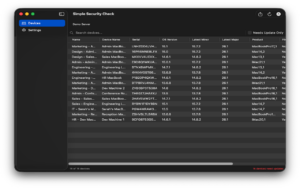
    Simple Security Check app with test data
    Simple Security Check app with test data

    The Beginning: A Shell Script Solution

    The original tool was born from a simple need: cross-reference SimpleMDM device data against the SOFA (Simple Organized Feed for Apple Software Updates) macOS security feed to identify which devices needed macOS updates. The shell script was straightforward but capable enough to export a spreadsheet for clients to review in a simple presentation:

    ```bash
    
    #!/usr/bin/env bash
    
    set -euo pipefail


    # Fetch devices from SimpleMDM
    
    # Compare against SOFA feed
    
    # Export CSV reports
    
    ```


    What the Shell Script Did Well

    The shell script handled several complex tasks more or less efficiently:

    1. **API Pagination**: Properly implemented cursor-based pagination for SimpleMDM’s API, handling potentially thousands of devices across multiple pages with retry logic and exponential backoff. Note: the very first version I posted didn’t do this at all, but thanks to a reminder from a helpful MacAdmin I remembered I needed to implement pagination and do it properly. Thanks!

    2. **Smart Caching**: Cached both SimpleMDM device lists and SOFA feed data for 24 hours, reducing API calls and improving performance.

    3. **Comprehensive Security Tracking**: Monitored FileVault encryption, System Integrity Protection (SIP), firewall status, and OS version compliance.

    4. **Flexible Exports**: Generated three types of CSV reports and full JSON exports with timestamps, automatically opening them in the default applications.

    5. **Version Intelligence**: Compared devices against both their current major OS version’s latest release and the maximum compatible OS version for their hardware model.

    The Pain Points

    However, the shell script approach had limitations:

    – **API Key Management**: The API key had to be entered each time or set as an environment variable—no secure storage mechanism.

    – **Single Account**: No support for managing multiple SimpleMDM accounts or environments.

    – **Limited Search**: Finding specific devices required opening CSVs and using spreadsheet search.

    – **No Visual Interface**: Everything was command-line based, requiring users comfortable with terminal operations.

    – **Manual Execution**: I had to remember to run it periodically.

    The script even had a TODO comment acknowledging its destiny:

    ```bash
    
    # to do: make into a native swift/swiftUI app for macOS
    
    # with better UX saving multiple API key entries into
    
    # the keychain with a regular alias

    “`

    The Transformation: Building a Native macOS App

    The decision to create a native macOS application wasn’t about abandoning what worked—it was about preserving that core functionality while addressing its limitations. And most importantly, being nerd-sniped by a colleague saying why not make it into a Swift app using current AI tools. I thought I could try it. How hard could it be? haha. What do I know about Swift, and what do I know about what is possible? Let’s see. The goal was clear: maintain 100% feature parity with the shell script while adding the convenience users expect from modern macOS software. And simplicity. I wanted a simple app to use to make all our lives easier. At least, this one part.

    Architecture Decisions

    The app was built using SwiftUI with a clear separation of concerns:

    **AppState.swift** – The Brain

    ```swift
    
    @MainActor
    
    class AppState: ObservableObject {
    
        @Published var apiKeys: [APIKeyEntry] = []
    
        @Published var devices: [SimpleMDMDevice] = []
    
        @Published var sofaFeed: SOFAFeed?
    
        @Published var searchText = ""
    
        @Published var showOnlyNeedingUpdate = false
    
    }
    
    ```


    This centralized state manager coordinates all data operations, making the UI reactive and keeping business logic separate from presentation.

    **KeychainManager.swift** - Secure Storage
    
    ```swift
    
    class KeychainManager {
    
        func saveAPIKey(_ key: String, for alias: String) throws {
    
            // Store in macOS Keychain with kSecAttrAccessibleWhenUnlocked
    
        }
    
    }
    
    ```

    One of the shell script’s biggest weaknesses became one of the app’s strongest features. API keys are now stored securely in macOS Keychain, never exposed in plain text, and protected by the system’s security model.

    **DatabaseManager.swift** - Intelligent Caching
    
    ```swift
    
    class DatabaseManager {
    
        func getCachedDevices(forAPIKey alias: String) -> [SimpleMDMDevice]? {
    
            // Query SQLite with 24-hour cache validation
    
            // Indexed for fast search
    
        }
    
    }
    
    ```

    The file-based JSON caching from the shell script evolved into a SQLite database with indexed search capabilities. Each API key gets its own cached dataset, and the 24-hour cache duration from the original script was preserved.

    **APIService.swift** - Network Layer
    
    ```swift
    
    class APIService {
    
        func fetchAllDevices(apiKey: String,
    
                            apiKeyAlias: String,
    
                            forceRefresh: Bool) async throws -> [SimpleMDMDevice] {
    
            // Same pagination logic as shell script
    
            // Same retry mechanism with exponential backoff
    
            // Same User-Agent header pattern
    
        }
    
    }

    “`

    The API fetching logic was ported almost line-for-line from the shell script. The same pagination handling, the same retry logic, even the same User-Agent pattern. If it worked in Bash, it works in Swift. And the User-Agent pattern came from a helpful Issue submitted in GitHub about making the shell script a better part of the SOFA ecosystem. Thanks again!

    What Got Better

    **Multiple API Key Support**

    The single biggest improvement was supporting multiple SimpleMDM accounts. IT administrators often manage multiple clients or environments. The app now stores unlimited API keys with custom aliases:

    – “Production” for your main environment

    – “Testing” for sandbox testing

    – “Client A“, “Client B” for MSPs managing multiple organizations

    Each API key appears as a tab in the interface, with separately cached data for instant switching.

    **Real-Time Search and Filtering**

    The shell script required exporting to CSV and searching in a spreadsheet. The app provides instant, full-text search across all device attributes:

    ```swift
    
    var filteredDevices: [SimpleMDMDevice] {
    
        var result = devices


        if showOnlyNeedingUpdate {
    
            result = result.filter { $0.needsUpdate }
    
        }


        if !searchText.isEmpty {
    
            result = result.filter { device in
    
                name.localizedCaseInsensitiveContains(searchText) ||
    
                deviceName.localizedCaseInsensitiveContains(searchText) ||
    
                serial.localizedCaseInsensitiveContains(searchText) ||
    
                // ... and more fields
    
            }
    
        }


        return result
    
    }
    
    ```

    Type a serial number, see the device instantly. Toggle “Needs Update” to focus on out-of-date machines. Sort by most columns with a click. Note: I did run into a limitation with the number of sortable columns in the Swift code, many iterations and trials and eventually I found something that worked. Yeah Swift!

    **Automatic Refresh with Progress**

    The shell script required manual execution. The app handles refresh automatically:

    – Background refresh respects the 24-hour cache

    – Progress indicators show API fetch status

    – Force refresh option bypasses cache when needed

    – Errors display in-app with clear messaging

    What Stayed the Same (Intentionally)

    Certain aspects of the shell script were functional and useful so they were copied in the app:

    **Export Format Compatibility**

    The CSV exports use the exact same format as the shell script:

    ```csv
    
    "name","device_name","serial","os_version","latest_major_os",
    
    "needs_update","product_name","filevault_status",
    
    "filevault_recovery_key","sip_enabled","firewall_enabled",
    
    "latest_compatible_os","latest_compatible_os_version","last_seen_at"
    
    ```

    Users who had automated workflows processing these CSVs didn’t need to change anything.

    **Output Directory Structure**

    Files still export to `/Users/Shared/simpleMDM_export/` with the same naming convention:

    “`

    simplemdm_devices_full_2025-12-11_1430.csv

    simplemdm_devices_needing_update_2025-12-11_1430.csv

    simplemdm_supported_macos_models_2025-12-11_1430.csv

    simplemdm_all_devices_2025-12-11_1430.json

    “`

    **Cache Duration**

    The 24-hour cache validity period was retained. It’s a sensible balance between API rate limiting and data freshness for device management.

    **SOFA Integration Logic**

    The algorithm for matching devices against SOFA feed data remained identical:

    1. Build a lookup table of latest OS versions by major version

    2. Match each device’s hardware model against SOFA’s compatibility data

    3. Determine both “latest for current major” and “latest compatible overall”

    This dual-version approach is valuable for planning: devices might be current on macOS 13.x but capable of running macOS 15 or macOS 26. It’s good to know.

     Technical Highlights

     Security Model

    The app runs fully sandboxed with carefully scoped entitlements:

    ```xml
    
    <key>com.apple.security.app-sandbox</key>
    
    <true/>
    
    <key>com.apple.security.network.client</key>
    
    <true/>
    
    <key>com.apple.security.files.user-selected.read-write</key>
    
    <true/>
    
    ```

    API keys use Keychain with `kSecAttrAccessibleWhenUnlocked`, meaning they’re protected when the Mac is locked.

     Data Flow

    1. **Launch**: Load API key metadata from UserDefaults, actual keys from Keychain

    2. **Refresh**: Check SQLite cache validity, fetch from APIs if needed

    3. **Process**: Merge SimpleMDM and SOFA data using the same algorithm as the shell script

    4. **Cache**: Store in SQLite with timestamp and API key association

    5. **Display**: Render in SwiftUI Table with reactive filtering

    Test Mode Feature

    A unique addition not in the shell script: a test mode that generates dummy devices for demonstrations and screenshots:

    ```swift
    
    func toggleTestMode() {
    
        testModeEnabled.toggle()


        if testModeEnabled {
    
            let demoEntry = DummyDataGenerator.createDemoAPIKeyEntry()
    
            apiKeys.insert(demoEntry, at: 0)


            let dummyDevices = DummyDataGenerator.generateDummyDevices(count: 15)
    
            // ... process with real SOFA data
    
        }
    
    }
    
    ```


    This allows testing the full UI without a SimpleMDM account—perfect for App Store screenshots or demos. And it turns out a requirement for the App Store review process since the alternative was giving them API keys to real data to test with, which I could not do, of course, and which brought us to generating test data. A perfect plan.

     Lessons Learned

    What Worked

    **Preserve the Core Logic**: The shell script’s API handling, caching strategy, and data processing were good enough and worked. Porting them to Swift rather than redesigning saved time and avoided regressions.

    **Prioritize Security from Day One**: Building Keychain integration first made everything else easier. API keys are sensitive, and getting that right early prevented technical debt.

    **SwiftUI for Rapid UI Development**: Building the table view, settings panel, and navigation in SwiftUI was dramatically faster than AppKit would have been. But since my experience was using an app like Platypus for simple app creation using SwiftUI was definitely more flexible and possible with help from current tools.

    What Was Challenging

    **Async/Await Migration**: The shell script’s sequential curl calls had to become proper async Swift code with structured concurrency.

    **SQLite in Swift**: While more powerful than file caching, setting up proper SQLite bindings and schema management added complexity. and app sandbox rules moved the location of the cache and added a wrinkle in testing.

    **Tab-Based Multi-Account UI**: The shell script only handled one API key. Designing an intuitive interface for switching between multiple accounts required several iterations.

     Performance Comparison

    **Shell Script**:
    
    - Initial fetch: ~8-12 seconds for 100 devices
    
    - Subsequent runs (cached): ~2-3 seconds
    
    - Search: N/A (requires opening CSV)


    **Swift App**:
    
    - Initial fetch: ~8-12 seconds for 100 devices (same API calls)
    
    - Subsequent launches: <1 second (SQLite cache)
    
    - Search: Real-time (indexed database queries)
    
    - Switching API keys: Instant (cached data)

     The Result

    The final application preserves everything that made the shell script valuable while transforming the user experience:

    – **Same data, better access**: All the security metrics, none of the manual CSV searching

    – **Same exports, more secure**: Identical CSV format, Keychain-protected credentials

    – **Same caching, faster searches**: 24-hour cache retained, SQLite indexed queries added

    – **One account to many**: Support for unlimited SimpleMDM accounts. Good for testing.

    – **Terminal to GUI**: From command-line to native macOS interface

    The app isn’t just a shell script wrapped in a window—it’s a giant leap into Swift app production which challenged me enormously for troubleshooting and app testing. This app is a small step in the code adventures that await us all when we want to take an idea, from shell code to Mac app.

     Future Enhancements

    While the current version achieves feature parity and then some, there’s room to grow:

    – **Scheduled Auto-Refresh**: Background fetching on a schedule

    – **Push Notifications**: Alerts when devices fall out of compliance

    – **Export Automation**: Scheduled exports to specific directories

    – **Custom Filters**: Save filter configurations for different report types

    – **Device Groups**: Tag and organize devices into custom categories

    – **Trend Analysis**: Historical tracking of fleet compliance over time

    This is not the end

    The journey from shell script to native app demonstrates that nerd-sniping does work and we can be pushed to try new things. The shell script’s core logic—its API handling, caching strategy, and data processing—was already ok, somewhat decent, and at least functional. The leap to all Swift was about making that functionality more accessible, more secure, while making testing and troubleshooting more difficult and confusing, but also a valuable learning opportunity. Xcode 26.1 has some basic code fixing abilities that we tested many times. It helped!

    For IT administrators managing Mac fleets, the app delivers what the script did (device security monitoring and reporting) with what the script couldn’t (multi-account support, instant search, secure credential storage, and a native interface).

    The script’s final TODO comment has been fulfilled:

    ```bash
    
    # to do: make into a native swift/swiftUI app for macOS
    
    # with better UX saving multiple API key entries into
    
    # the keychain with a regular alias
    
    ```

    ✅ Done.

    **Simple Security Check** is available for macOS 15.0 (Sequoia) and later from the Mac App Store. The original bash source code and architecture documentation can be found in the project GitHub repository.

    *Built with SwiftUI, powered by the same bad logic that served IT admins well in its shell script form, now with the wild woodland scent of a native macOS application.*

  • Steal This Idea

    check all your Macs at once with SOFA feed

    Note: this blog post relates to the previous one where I introduce the scripts to check SimpleMDM devices and compare with latest version info in the SOFA feed here: Use the SOFA feed to check if SimpleMDM devices needs updates

    Ok, please steal this idea. The idea? To check all your Macs at one time, instead of each device, on device, one at a time.

    What do I mean? Well, when I first heard about the SOFA feed which contained all the latest versions I didn’t know what to do with it honestly but soon after I realized that my clever script for checking XProtect version and which I made into a custom attribute in SimpleMDM and added to the dashboard was an incomplete idea.

    Ok, I’m smart, I got the XProtect version on each Mac by running a script and then I got SimpleMDM to display it in a dashboard. But what’s missing? Context. Is it the latest version or not? So I added a SOFA check to the script then made SimpleMDM display both the local version and the latest version so I’d know if it was the latest or not. Great, right? Well, maybe.

    The problem, I realized is that I wanted to do this for the macOS version too because I wanted to share info with a client/manager etc and realized the list of devices and info about macOS versions for example, lacked the context of whether it was the latest, and should we take action or not. That’s the point, right? collect info then do something about it, if action is required. Update your macOS now.

    And then I wondered why I’m getting every Mac to ask itself what is its macOS or XProtect version, etc, when SimpleMDM was asking a lot of those questions already and putting it in a dashboard, accessible via API….

    Then it happened, the idea that should be stolen by SimpleMDM and all other management tools. Don’t just display info about a Mac’s macOS version, show the latest version next to it, because I want to know if it should be updated. And also what is the latest that Mac can upgrade to. Maybe it’s running macOS 13.6, is that the latest or is 13.7.7, no wait it changed again, it’s 13.7.8. And by the way the latest compatible upgrade is 15.6.1, now that’s useful info.

    product_nameos_versionlatest_major_osneeds_updatelatest_compatible_oslatest_compatible_os_version
    Mac13,114.7.414.7.8yesSequoia 1515.6.1
    MacBookPro17,114.6.114.7.8yesSequoia 1515.6.1
    Mac13,215.615.6.1yesSequoia 1515.6.1
    iMac21,115.515.6.1yesSequoia 1515.6.1
    MacBookPro17,113.613.7.8yesSequoia 1515.6.1

    References:

    Check SimpleMDM device list and compare macOS version vs SOFA feed latest

    XProtect check version compared to latest SOFA

  • Firewall ch-ch-changes in macOS 15 Sequoia

    Knock knock

    “Who’s there?”

    macOS 15 Sequoia. Check your firewall checking scripts please

    If anyone is following along with my attempt to re-create MunkiReport in SimpleMDM then you’ll be happy to know the space madness is still strong and macOS 15 has made one tiny thing break, my firewall checking script.

    My firewall checking script began life as a simple check of the status in the alf pref file but that file no longer exists in macOS 15.

    See this Knowledge base article which lists in bug fixes that the file no longer exists and that the socketfilterfw binary be used instead, except that doesn’t work when Macs are managed.

    Application Firewall settings are no longer contained in a property list. If your app or workflow relies on changing Application Firewall settings by modifying /Library/Preferences/com.apple.alf.plist, then you need to make changes to use the socketfilterfw command line tool instead.

    Yes, my Macs are managed with MDM and yes I have a profile to enable the firewall but no I don’t trust it so can I check please with another method. Trust but verify.

    So thanks to some friends in the MacAdmins Slack I stole the idea from tuxudo to check firewall in macOS 15 using system profiler, because he had re-written the MunkiReport module already and so there I go again, stealing from MunkiReport and all the hard work they do.

    After playing with the output of system_profiler a bit I looked at the “Mode”

    /usr/sbin/system_profiler SPFirewallDataType -detailLevel basic |grep Mode 
          Mode: Allow all incoming connections
          Stealth Mode: No
    

    Of course I could write some nice code to clean this up or instead I switched to searching for “Limit” and if there’s no hit on that there’s no limit (translated: firewall is not enabled“)

    /usr/sbin/system_profiler SPFirewallDataType -detailLevel basic |grep Limit

    And if there is a limit then the firewall is enabled.

    Mode: Limit incoming connections to specific services and applications

    Simple. Good enough to add to my SimpleMDM script to run and populate the value to the custom attribute and update my dashboard. And my crazy mission to build everything into SimpleMDM dashboard is still… madness …. but also quite fun.

  • A Mesh VPN For Everyone

    How to use Tailscale (wireguard based) mesh VPN to connect everything

    What is Tailscale? It’s a mesh VPN based on the wireguard open source project. It’s a secure network to connect your own devices no matter where they are.

    Tailscale is free to use with one account and up to 100 devices, which is enough to see how well this can work to connect up servers, storage and desktops. They have paid plans for teams and enterprise.

    Tailscale macOS app icon

    macOS and iOS

    To start, download Tailscale on your Mac or iPhone then find your IP address. Once you are signed in and have your IP address you can connect easily between devices. For example, on your iPhone open the Tailscale app and see your installed devices. Click on your Mac and the IP will be copied into the clip board. Use this to connect with app such as Secure shellfish for SSH or VNC viewer for remote login. When you’re in the same network it’s impressive, but when you’re on a different network, separated far away, It’s magic.

    The real test for me was to install Tailscale on some backup servers I manage to make it more secure and more convenient to access them. I had used a variety of remote control for business services and well, Tailscale is easier, quicker and much more awesome. All the other software I tried was much less awesome.

    After using Tailscale mainly for remote control, I tested Tailscale to securely connect my remote Macs to my own MunkiReport server. I use Munki and MunkiReport to manage Macs and having Tailscale allows me to securely connect endpoints to the server without opening up ports on my router. MunkiReport allows me to detect malware (with DetectX plugin) or check on backup jobs with Archiware P5 backup software (using a module I wrote) or a multitude of other diagnostics such as disk space free, apps installed, and all kinds of great hardware and software metrics. So much reporting. And MunkiReport doesn’t need Munki specifically, so if Tailscale is installed for remote control why not report on everything else.

    DSM Package Center: Tailscale (and Archiware P5) app on Synology NAS

    Synology DSM

    Having Tailscale installed in all the Synology NAS I manage in various physical locations allows me to securely connect to all of these NAS from anywhere. With remote work using a NAS is a great way to sync data between locations. Synology has a lot of great built-in tools to make this happen and a very robust quick connect feature combined with ddns, and let’s encrypt certificates to support it. After setting up a few to sync one location to another I was constantly getting notifications of IPs being blocked on my firewall. I had to open a port on my firewall to let in the ssh / rsync traffic through and despite a strong set of firewall rules with a geo block there were still connection failures and password attempts. Using Tailscale I can now have a P5 server set up on one Synology NAS connecting to the Tailscale IP of other remote units and it can easily backup, sync or archive the data from the various locations.

    To install the Synology Tailscale package check out this GitHub page. Download the app then side load it (manual install in package center). To enable it you will have to have ssh on, a user with permission to use it, and one command to type.

    sudo tailscale up

    In one case I didn’t have SSH enabled on the remote unit so I remoted into a Mac on the same network, enabled an admin user, turned on ssh with a time limit on the account, and then logged in. Once the above command is run you will get a link to a website to authenticate the device with your account.

    Linux (CentOS)

    I have also installed and tested Tailscale on a Linux (CentOS) storage server. In my case a Jellyfish which has a ZFS volume shared over direct 10GbE for Final Cut Pro video editors using nfs or smb. the Jellyfish works well on premise, but wouldn’t it be nice to capture camera cards to the remote storage server via Tailscale? Oh yes it would. And what about playing back some of the video files via VLC on your iPhone! Or Files.app! Yes, to all the above. All made possible with Tailscale. And a huge shout out for their great documentation. Installing Tailscale on CentOS was super simple. Add a yum repo, install, tailscale, and then bring the service up. Couldn’t be easier.

    sudo yum-config-manager --add-repo https://pkgs.tailscale.com/stable/centos/7/tailscale.repo
    
    sudo yum install tailscale

    Shared Devices

    A small, but very exciting, feature was added part way through my testing of Tailscale which made it infinitely more awesome, shared devices. The concept is you are authenticated to your devices and can see in the Tailscale app all the IPs to connect to, but what if you could share one device (computer, server, NAS) with another person? Well, now you can. In the Tailscale admin console choose a device and send a share link to someone, they then will see this devices in their device list as shared. Home users can set up Tailscale to access all their own devices, but now can also choose to share access with a device in particular. For example, if you create an account, open a service (file sharing) and send a share link then the other person will login with the account you create and access the one thing you want them to. Maybe it’s a smb share to drop files. Works great for video collaboration and other kinds of teams.

    There’s a whole lot more you can do with Tailscale (and wireguard) mesh VPN but I hope this gives you all some ideas to start with.

  • From Camera to the Clouds: the very real story of Hedge and Postlab

    Update: This proxy workflow applies to Final Cut Pro 10.4.8 and earlier. For the new proxy workflow with FCPX 10.4.9 and Final Cut Pro 10.5 see my new blog post

    Note: I want to explain how our current workflow for editing remotely. I am always testing new tools and methods, so workflows change all the time. This is a snapshot in time of what we are trying now. So far it works.

    Hedge

    We use Hedge to copy camera cards to multiple drives on set (or after a shoot if on location) and then we use Hedge once more to copy one of these drives to the office shared storage (Apple’s Xsan).

    Why use Hedge? A nice simple app which hides its complexity well. Hedge has an easy interface to copy multiple sources (camera cards, usually) to multiple destinations (two external drives, or two SAN locations etc), and it does it well. It verifies, and double checks its work and leaves receipts. What was copied when. This is very nice and very useful for troubleshooting. It also has an API which made it easy to build an app that configures Hedge for its current task, and AppleScript support for extending automations after specified actions.

    Kyno and Postlab

    We are using two other tools in our remote ingest workflow currently: Kyno from Lesspain software for rewrapping and converting camera footage and Postlab, the remote collaboration tool for Final Cut Pro (and Premiere Pro). Testing with other tools is always ongoing and during a recent test of the workflow we also tried EditReady from Divergent Media.

    The Workflow (so far)

    While we are exploring various workflow automations we are currently doing the following steps manually.

    1. Hedge to copy camera cards two external drives on set, and then Hedge copy the drive to Xsan
    2. Making re-wrapped in MOV files from the original camera MXF files using Kyno and then
    3. Making H264 MOV 4K proxies in Kyno
    4. Uploading finished proxies to Postlab drive using Hedge
    5. Set up FCPX production and new FCPX library from template connected to proxies in Postlab drive

    Hedge and Postlab

    Hedge is super useful. Two times good. Hedge and Postlab are best friends. And the UI on both shows the simple aesthetic shared by the developers. Three panes. Source / Start to Destination / Projects. Whether you are copying Proxies to Postlab Drive or accessing your editing projects in Postlab the apps will guide you through.

    Copying the Proxies with Hedge to Postlab Drive.

    Details. Rewrap and Proxies

    Workflows will depend on your goals, and your available tools. In this case we are using a Canon camera and ingesting MXF files. In order to edit with small Proxies in FCPX but also be able relink to original (and larger) files easily we need to in our case re-wrap the original MXF to QuickTime MOV container.

    Right click on a clip in Kyno to rewrap to Mov.

    Originals. Not Proxies.

    And to be clear we are treating these in FCPX as “new” originals not as actual FCPX proxies. With the rewrapped MOV files we make transcoded H264 files which are swapped 1 for 1 with the original. When we need to export a final 4K version we can relink to the original 4K source and export easily.

    Proxies. Not originals

    The transocded H264 4K proxies we made in Kyno were 15x smaller than the original re-wrapped Mov files. We had almost 600GB in originals and 37GB for the 4K H264 proxies!!

    Postlab Pro Tips

    Working with Postlab pro tip #1 –> keep those FCPX libraries light. Keep all media and cache files out of the library. We knew that and we had Storage Locations set to outside of the library but one new issue came up when the libraries grew really big and we realized the editors were making multiple sequences, not backups, but versions. Now we are trying to work around this habit with Postlab itself. You can check in a version of the library and duplicate library for an alternate version. Modifications of old habits are always tough but technical reasons may force a change in habits here. We will see. Postlab pro tip #2 –> Keep your cache large and fast. By default the Postlab cache is your local drive and only 20GB. If you have a fast SSD or an external drive then move that cache and increase the size. It will help. Trust me.

    Kyno vs EditReady

    Another small issue we encountered in testing was that we could make the rewrapped Mov files in Kyno or in EditReady and both were fine. The only objection the editors had was that in Kyno we could keep the folder structure of the original camera cards and they felt that this lent some confidence to being able to track the files to the camera card folders if any media was missing or misplaced. The EditReady files kept the original names but they were all in one folder. As the tech I see no issue with FCPX handling these files since we’d be ingesting all the finished proxy files and all the files were named by the camera. Editors should be able to tell which reel the clips were from by the clip name and that’s all you need technically, but you can’t win every argument with an editor. As the tech you need to test alternative tools and methods and see what works technically but also see what can be accepted to work in the way the editors want to work. Changes to workflow are some of the hardest to make, making a system that is used, actually used, by the editors is the goal.

    Errata

    Errors. If you get them, how do you know? This was one area where I could comment on both Kyno and EditReady. I am spoiled by Hedge and it’s nice reports when it is done copying. And Postlab which has a Help menu :collect logs for support button, very nice. If your software tool is going to process a lot of files (rewrapping then transcoding) I want to know if there were errors. EditReady popped up a window to what had succeeded or failed and Divergent Media support told me to look in the logs for any issues encountered. Not great. While Kyno has a separate jobs window which shows jobs done or failed. But still no report. I would like a receipt or report or log at the end with files converted or failed to convert. It would help troubleshooting any issues when they arise. Tech support for both companies is great and responsive. Thanks again. And I’ll keep sending in feature requests.

    Testing. More Testing. And Teamwork.

    We are testing this workflow in production with a real project and getting feedback from the team. So far the proxies have proven to be easy to make, quick to upload to Postlab drive, simple to use in FCPX in Postlab. Assembling the cut and editing are going well. We will find out about the colour process when we get to that stage and relink to the originals. Stay tuned.

    Thanks!

    Thanks to Felipe Baez / cr8ivebeast for his assistance on this part of the workflow. We were having trouble relinking to the original MXF and he gave us the excellent tip to rewrap then in Kyno then make the smaller proxies. Works like a charm. Thank you Felipe! Here’s a link to a video Felipe made showing a similar procedure using Compressor to transcode and then relink in FCPX and it goes to show you that there are lot of ways to do things and to keep trying, and experimenting. You might learn a thing or two.

  • Xsan Upgrade and Big Sur Prep. Hello Catalina!

    Big Sur summer testing time!

    Summer time is beta testing time. A new macOS beta cycle with Big Sur is upon us. Test early, and test often. With all the excitement of Big Sur in the air, it’s time to look at Catalina.

    Our day to day production Xsan systems do not run beta software, not even the latest version of macOS, they only run tested and safe versions of macOS. I always recommend being a revision behind the latest. Until now that meant macOS 10.14 (Mojave). With the imminent release of macOS Big Sur (is it 10.16 or macOS 11?) then it’s time to move from 10.14.6 Mojave to 10.15.6 Catalina. It must be safe now, right? 

    Background

    Xsan is Apple’s based Storage Area Network (SAN) software licensed from Quantum (see StorNext), and since macOS 10.7 aka Lion it has been included with macOS for free (it was $1,000 per client previously!).

    Ethernet vs Fibre Channel vs Thunderbolt

    A SAN is not the same as a NAS (Network attached storage) or DAS (direct attached storage). A NAS or other network based storage is often 10GbE and can be quite fast and capable. I will often use Synology NAS with 10GbE for a nearline archive (a second copy of tape archive) but can also use it as a primary storage with enough cache. Lumaforge’s Jellyfish is another example of network based storage.

    Xsan storage is usually fibre channel based and even old 4GB storage is fast because … fibre channel protocol (FCP) is fast and the data frames are sent in order unlike TCP. It is more common to see 8GB or 16Gb fibre channel storage these days (though 32GB is starting to appear). And while fibre channel is typically what you use for Xsan you can also use shared Thunderbolt based storage like the Accusys A16T3-Share. I have tested a Thunderbolt 2 version of this hardware with Xsan and it works very well. I’m hoping to test a newer Thunderbolt 3 version soon. Stay tuned.

    Xsan vs macOS Versions

    We’ve discussed all the things that the Xsan is not and now what is it? Xsan is often created from multiple fibre channel RAID storage units but the data is entirely dependent on the Xsan controller that creates the volume. The Xsan controller is typically a Mac Mini but can be any Mac with Server.app (from Apple’s App Store). The existence of any defined Xsan volumes depends on the sanity of its SAN metadata controllers. If the SAN controllers die and the configuration files go with it then your data is gone.  POOF! I’ve always said that Xsan is a shared hallucination, and all the dreamers should dream the same dream. To make sure of this we always recommend running the same version of macOS on the Mac clients as well as the servers (the Xsan controllers). And while the Xsan controllers should be the same or at a higher macOS version level it can sometimes be the opposite in practise. To be sure what versions of macOS are interoperable we can check with Apple’s Xsan controllers and clients compatibility chart and Xsan versions included in macOS for the rules and exceptions. Check the included version of Xsan on your Mac with the cvversions command

    File System Server:
      Server  Revision 5.3.1 Build 589[63493] Branch Head BuildId D
       Built for Darwin 17.0 x86_64
       Created on Sun Dec  1 19:58:57 PST 2019
       Built in /BuildRoot/Library/Caches/com.apple.xbs/Sources/XsanFS/XsanFS-613.50.3/buildinfo

    This is from a Mac running macOS 10.13

    Host OS Version:
     Darwin 17.7.0 Darwin Kernel Version 17.7.0: Sun Dec  1 19:19:56 PST 2019; root:xnu-4570.71.63~1/RELEASE_X86_64 x86_64

    We see similar results from a newer build below:

    File System Server:
      Server  Revision 5.3.1 Build 589[63493] Branch Head BuildId D
       Built for Darwin 19.0 x86_64
       Created on Sun Jul  5 02:42:52 PDT 2020
       Built in /AppleInternal/BuildRoot/Library/Caches/com.apple.xbs/Sources/XsanFS/XsanFS-630.120.1/buildinfo

    This is from a Mac running macOS 10.15.

    Host OS Version:
     Darwin 19.6.0 Darwin Kernel Version 19.6.0: Sun Jul  5 00:43:10 PDT 2020; root:xnu-6153.141.1~9/RELEASE_X86_64 x86_64

    Which tells us that the same version of Xsan are included with macOS 10.13 and 10.15 (and indeed is the same from 10.12 to 10.15). So we have situations with Xsan controllers running 10.13 and clients running 10.14 are possible even though macOS versions are a mismatch, the Xsan versions are the same. There are other reasons for keeping things the macOS versions the same: troubleshooting, security, management tools, etc  To be safe check with Apple and other members of the Xsan community (on MacAdmins Slack).

    Backups are important

    Do not run Xsan or any kind of storage in production without backups. Do not do it. If your Xsan controllers die then your storage is gone. Early versions of Xsan (v1 especially) were unstable and the backups lesson can be a hard one to learn. All later versions of Xsan are much better but we still recommend backups if you like your data. Or your clients. (Clients are the people that make that data and pay your bills). I use Archiware P5 to make tape backups, tape archives, nearline copies as well as workstation backups. Archiware is a great company and P5 is a great product. It has saved my life (backups are boring, restores are awesome!).

    P5-Restore-FCPX.png

    Xsan Upgrade Preparation

    When you upgrade macOS it will warn you that you have Server.app installed and you might have problems. After the macOS upgrade you’ll need to download and install a new version of Server.app. In my recent upgrades from macOS 10.13 to macOS 10.15 via 10.14 detour I started with Server.app 5.6, then install 5.8 and finally version 5.10.

    After the macOS upgrade I would zip up the old Server.app application and put in place the new version which I had already downloaded elsewhere. Of course you get a warning about removing the Server app


    Xsan-ServerApp-ZipRemovalDetected.png

    Install the new Server app then really start your Xsan upgrade adventure.

    Serverapp-setup.png

    Restore your previous Xsan setup.

    If everything goes well then you have Xsan setup and working on macOS 10.15.6 Catalina

    Xsan-Catalina-Upgrade-Success

  • Reset Printer Queue

    TIL (thing I learned)

    Had a user upgrade to macOS 10.14.1 and no printers showed up anymore.

    So using my Google fu I found some posts (see one below) which described a novel way to reset the print queue on macOS. An old trick apparently. Learn something new everyday.

    A quick trip to a terminal and it worked! The existing printers returned to System Preferences and printing resumed.

    $ cancel -a

    Reference

  • macOS High Sierra vs Server.app

    Upgrading to macOS High Sierra is akin to walking on the bridge of peril. Too perilous!

    I don’t recommend macOS 10.13.x for production, but it is necessary to test and for this reason back in September I did upgrade my test Mac. Of course, when the installer detects server it will give you a warning about it not being compatible and you’ll have to download a compatible version from the App Store. Be warned!

    ThisVersionOfServerNoLongerSupported2

    Which is no big deal as long you are warned and have backups and maybe you can download the compatible version from the App Store. Trying to launch the old version will get you a warning to go to the App Store and be quick about it.

    ThisVersionOfServerNoLongerSupported

    Some people are reporting that the macOS installer is erasing their Server.app and refusing to upgrade their Server with the macOS 10.13 compatible version (v.5.4).

    In that case, restore from Time Machine or other backups and start again?

  • Root Me Baby One More Time!

    UPDATE: Apple has posted a security update. 2017-001

    Root-a-pocalyse. Root down. Root a toot toot. Many funny tweets today about a very serious issue. A bug was discovered in macOS 10.13 that enabled anyone to login with a root account. With no password. Wow. Seriously. Yeah, that’s bad.

    Bug discovered by Lemi Orhan Ergin.

    I tested by clicking on the lock icon in System Preferences. Normally this requires an admin account. I was able to authenticate with “root” and no password. This actually also set root to no password. You can choose a password here and this makes it for you. How convenient. You can also login to the Mac via the login window. With root. And no password. Crazy.

    If your Mac is off it’s safe. Not joking. If your FileVault protected drive is encrypted and your mac is turned off then you’re good. If you Mac is turned on and you’ve logged in at least once (or at least decrypted the drive on boot) then you’re not safe.

    What can you do? Change the root password and set the shell to false. Until Apple fixes this. Should be anytime now. Or soon.

    dscl . -passwd /Users/root “random or very secure password here”

    dscl . -create /Users/root UserShell /usr/bin/false

    Read a comprehensive explanation on Rich Trouton’s site:  Der Flounder blog


  • I don’t get High — Sierra!

    Friends don’t let friends install macOS High Sierra in production. Don’t get High, Sierra.

    macOS 10.13 was released on Sep 25, 2017, and almost two months later with only one point release update, it’s still too new for production. Download it on a test machine or two or more, test it with your apps and systems, file bug reports and radars, but for the love of all that is Python and Monty! don’t run it on your production Xsan. Well, at least not yet. Wait until next year. Or as long as you can. Or until the new iMac Pro is released with 10.13 pre-installed or wait until they ship the new Final Cut Pro X 10.4 that may or may not require macOS High Sierra.

    With that out of the way, I’ve just upgraded the production Xsan to … macOS Sierra. Yes, macOS 10.12.6 is stable and it’s a good time to install last year’s macOS release. Time to say good bye to macOS el Capitan 10.11.6, we hardly knew ya. Besides guaranteed security updates, stability and the annoying newness of a changed macOS, what else is there? In Xsan v5 they introduced a new “ignore permissions” checkbox for your Xsan volumes. Looking forward to that feature in production. No more Munki onDemand nopkg scripts to run chmod. No more tech support requests for folders, files, FCP X projects that won’t open because someone else used it, owns it, touched it. We’ll see how that pans out. I’ll let you know.

    Upgrading Xsan to v5

    Step 1. Back up your data

    You’re doing this, right? I’m using Archiware P5 Backup to backup the current projects to LTO tape. I’m using Archiware P5 sync to sync the current Xsan volumes to Thunderbolt RAIDs, and using Archiware P5 Archive (and Archive app) to archive completed projects to the LTO project archive. That’s all I need to do, right?

    Step 2. Back up your servers

    Don’t forget the servers running your SAN! I use Apple’s Time Machine to backup my Mac Mini Xsan controllers. External USB3 drive. I also use another Mac Mini in target disk mode with Carbon Copy Cloner to clone the server nightly. (Hat tip to Alex Narvey, a real Canadian hero). And of course I grab the Xsan config with hdiutil and all the logs with cvgather. Because, why not?! For Archiware P5 backup server I also have a python scripts to backup everything, another scripts to export a readable list of tapes, and BackupMinder to rotate the backups. Add some rsync scripts and you’re golden.


    Step 3. Upgrade the OS

    Unmount the Xsan volume on your clients or shut them down, disconnect the fibre channel. Do something like that. Stop your volume. Download the macOS Sierra installer from the App Store. Double click upgrade. Wait. Or use Munki. I loaded in the macOS 10.12.6 installer app into Munki and set it up as an optional install to make this portion of the upgrade much quicker and cleaner.

    In my case after the OS was upgraded I checked the App Store app for any Apple updates (you can also use Munki’s Managed Software Center to check) and of course there were some security updates. In this case the security upgrade hung on a slow network connection and the server crashed. Server down! I had to restore from Time Machine backup to the point where I just upgraded the server. It took some extra time  but it worked (can’t wait for next year’s mature APFS / Time Machine and restoring from snapshots instead).

    Step 4. Upgrade Server

    After macOS is upgraded you’ll need to upgrade the Server.app or just upgrade the services used by Server (even those not used by Server get upgraded).

    Step 5. Upgrade the Xsan

    Bur first we have to restore the Xsan config. Don’t panic! It may invoke bad memories of data loss and restoring from backups. Xsan PTSD is real.

    Restore-previous-Xsan.png

    Step 6. Upgrade the rest

    Next you have to upgrade the Xsan volumes.

    Xsan-volume-needs-upgrade

    New version of Xsan, ch-ch-changes! Ignore permissions check box will remount the xsan with the “no-owners” flag. Let’s test this out.


    Upgrade the OS and Server app on the backup controller. Upgrade the OS on the clients using Munki or App Store if you like doing it the hard way. Ha Ha.

    Step 7. Enjoy

    Plug those Thunderbolt to Fibre adapters back in, mount those Xsan volumes and be happy.

    Step 8. Wait for the complaints

    The next day the editors walked in and went straight to work with Final Cut Pro X. No one noticed anything. Xsan upgraded. Workstation macOS upgraded. Everything appeared to be the same and just worked. Thankless task but well worth it.


    Reference: Apple’s iBook guide here